Writable Sys Path +Dll Hijacking Privesc
Introduction
If you can write to a directory in the system-wide PATH (not merely your user PATH), you may be able to escalate privileges on the system.
This can be abused through DLL hijacking when a more-privileged service or process tries to load a DLL that does not exist in its earlier search locations and eventually searches the writable system PATH directory.
For more information about DLL hijacking, see:
Privesc with Dll Hijacking
Finding a Missing DLL
First, identify a process running with more privileges that tries to load a DLL from a writable system PATH directory.
Remember that this technique depends on a Machine/System PATH entry, not only on your User PATH. Therefore, before spending time on Procmon, it’s worth enumerating the Machine PATH entries and checking which ones are writable:[1]
$machinePath = [Environment]::GetEnvironmentVariable("Path", "Machine") -split ';' | Where-Object { $_ }
$machinePath | ForEach-Object {
    $path = $_.Trim()
    if ($path) {
        Write-Host "`n[*] $path"
        icacls $path 2>$null
    }
}
The problem in these cases is that those processes are probably already running. To identify DLLs that services try and fail to load, launch Procmon as early as possible (before the processes start), then:
- Create the folder
C:\privesc_hijackingand add the pathC:\privesc_hijackingto System Path env variable. You can do this manually or with PS:
# Set the folder path to create and check events for
$folderPath = "C:\privesc_hijacking"

# Create the folder if it does not exist
if (!(Test-Path $folderPath -PathType Container)) {
    New-Item -ItemType Directory -Path $folderPath | Out-Null
}

# Set the folder path in the System environment variable PATH
$envPath = [Environment]::GetEnvironmentVariable("PATH", "Machine")
if ($envPath -notlike "*$folderPath*") {
    $newPath = "$envPath;$folderPath"
    [Environment]::SetEnvironmentVariable("PATH", $newPath, "Machine")
}- Launch
procmonand go toOptions—>Enable boot loggingand pressOKin the prompt. - Then, reboot. When the computer is restarted
procmonwill start recording events asap. - Once Windows is started execute
procmonagain, it’ll tell you that it has been running and will ask you if you want to store the events in a file. Say yes and store the events in a file. - After the file is generated, close the opened
procmonwindow and open the events file. - Add these filters to find all DLLs that a process tried to load from the writable System Path folder:

[!TIP] Boot logging is only required for services that start too early to observe otherwise. If you can trigger the target service/program on demand (for example, by interacting with its COM interface, restarting the service, or relaunching a scheduled task), it is usually faster to keep a normal Procmon capture with filters such as
Path contains .dll,Result is NAME NOT FOUND, andPath begins with <writable_machine_path>.
Missed Dlls
Running this in a free virtual (vmware) Windows 11 machine I got these results:
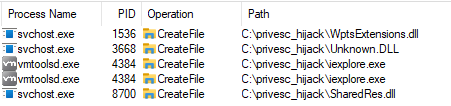
In this case, ignore the .exe results. The missing-DLL probes came from:
| Service | Dll | CMD line |
|---|---|---|
| Task Scheduler (Schedule) | WptsExtensions.dll | C:\Windows\system32\svchost.exe -k netsvcs -p -s Schedule |
| Diagnostic Policy Service (DPS) | Unknown.DLL | C:\Windows\System32\svchost.exe -k LocalServiceNoNetwork -p -s DPS |
| ??? | SharedRes.dll | C:\Windows\system32\svchost.exe -k UnistackSvcGroup |
The following example uses the technique described in this article about abusing WptsExtensions.dll for privilege escalation.[3]
Other candidates worth triaging
WptsExtensions.dll is a good example, but it is not the only recurring phantom DLL that shows up in privileged services. Modern hunting rules and public hijack catalogs still track names such as:[2]
| Service / Scenario | Missing DLL | Notes |
|---|---|---|
Task Scheduler (Schedule) | WptsExtensions.dll | Classic SYSTEM candidate on client systems. Good when the writable directory is in the Machine PATH and the service probes the DLL during startup. |
| NetMan on Windows Server | wlanhlp.dll / wlanapi.dll | Interesting on server editions because the service runs as SYSTEM and can be triggered on demand by a normal user in some builds, making it better than reboot-only cases. |
Connected Devices Platform Service (CDPSvc) | cdpsgshims.dll | Usually yields NT AUTHORITY\LOCAL SERVICE first. That is often still enough because the token has SeImpersonatePrivilege, so you can chain it with RoguePotato / PrintSpoofer. |
Treat these names as triage hints, not guaranteed wins: they are SKU/build dependent, and Microsoft may change the behavior between releases. The important takeaway is to look for missing DLLs in privileged services that traverse the Machine PATH, especially if the service can be re-triggered without rebooting.
Exploitation
To escalate privileges, hijack WptsExtensions.dll. Once the path and name are known, generate the malicious DLL.
You can try to use any of these examples. You could run payloads such as: get a rev shell, add a user, execute a beacon…
[!WARNING] Note that not all services run as
NT AUTHORITY\SYSTEM. Some run asNT AUTHORITY\LOCAL SERVICE, which has fewer privileges, so abusing one of these services may not let you create a new user.
However, that account has theSeImpersonatePrivilegeuser right, so you can use the Potato suite to escalate privileges. In this case, a reverse shell is a better option than trying to create a user.
At the moment of writing the Task Scheduler service is run with Nt AUTHORITY\SYSTEM.
Having generated the malicious Dll (in my case I used x64 rev shell and I got a shell back but defender killed it because it was from msfvenom), save it in the writable System Path with the name WptsExtensions.dll and restart the computer (or restart the service or do whatever it takes to rerun the affected service/program).
When the service is re-started, the dll should be loaded and executed (you can reuse the procmon trick to check if the library was loaded as expected).